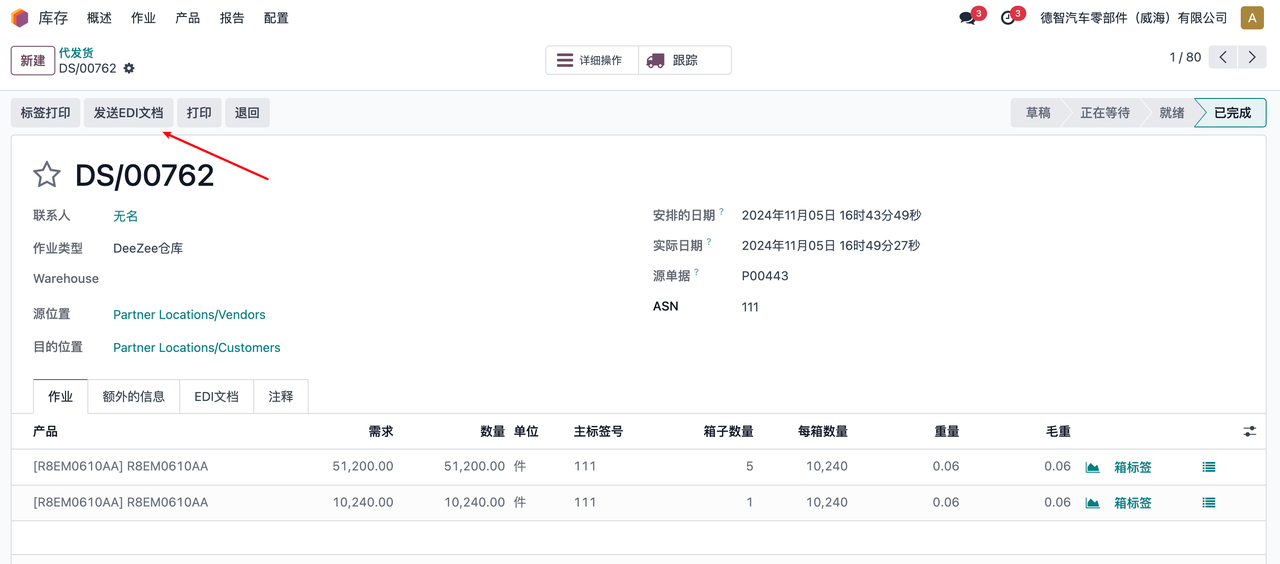
EDI
EDI is a system for receiving EDI documents from Party A’s company and returning EDI documents
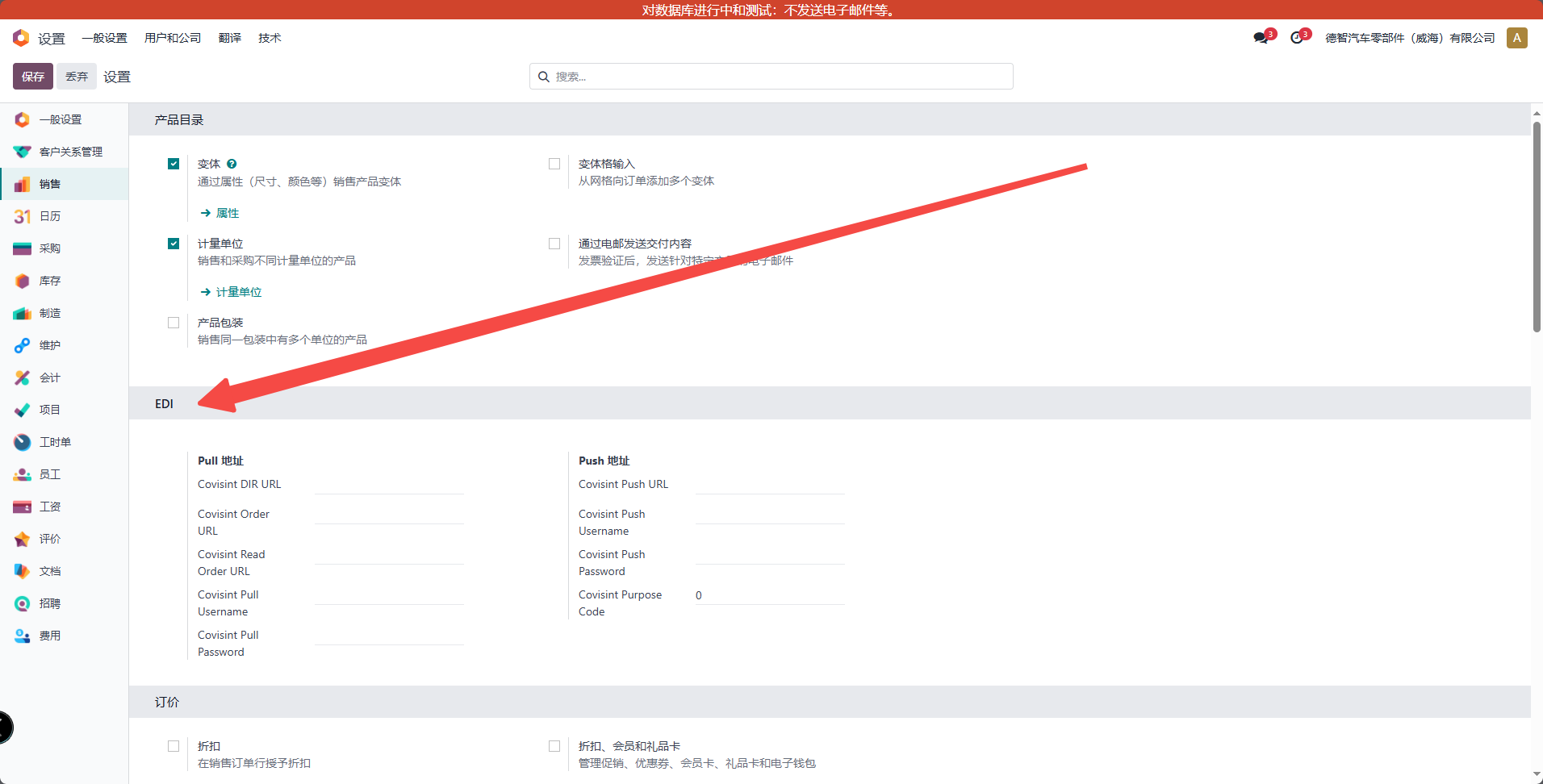
to configure
Configure EDI connection information
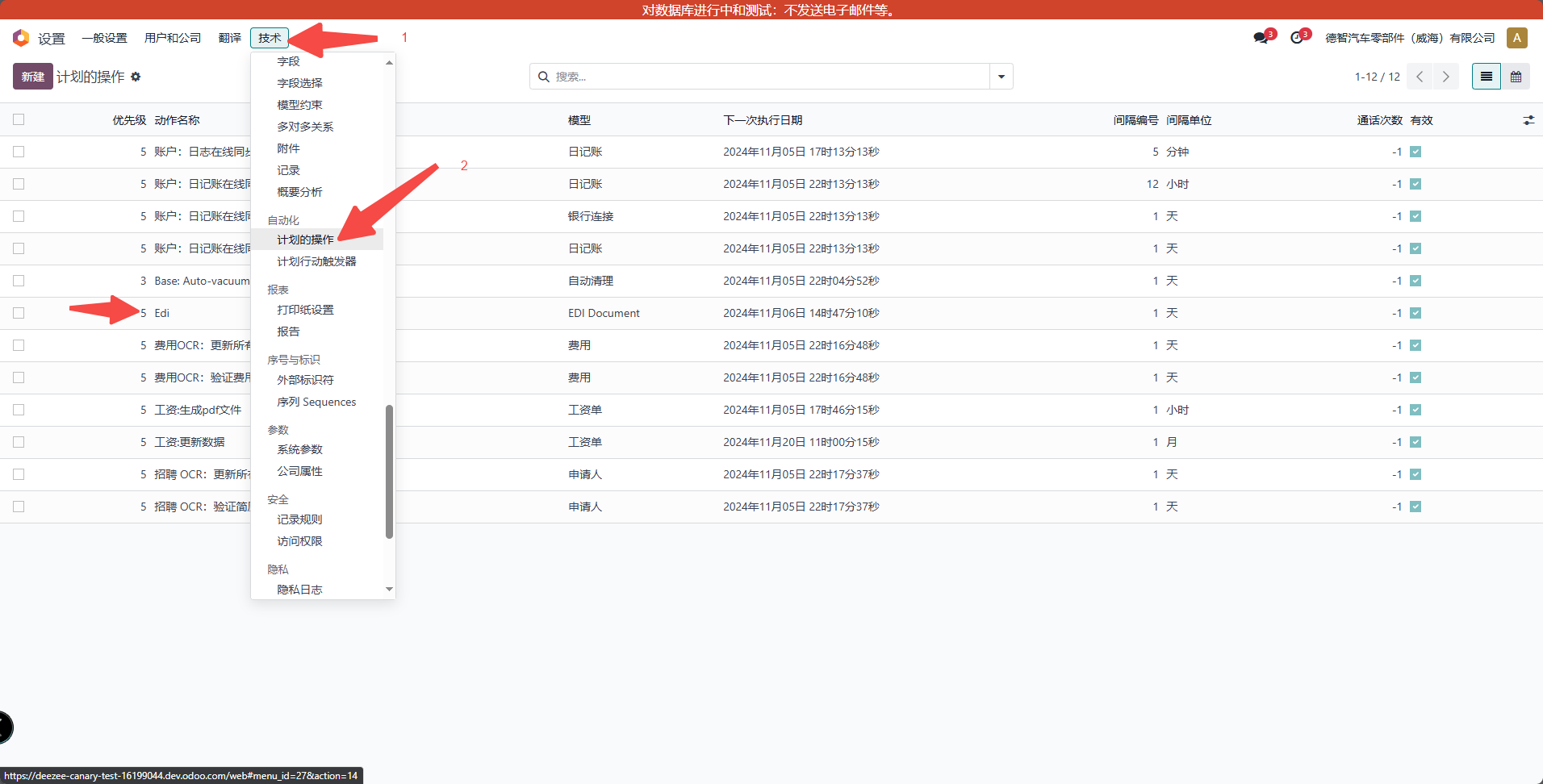
Configure the start time of EDI data
Manual operation
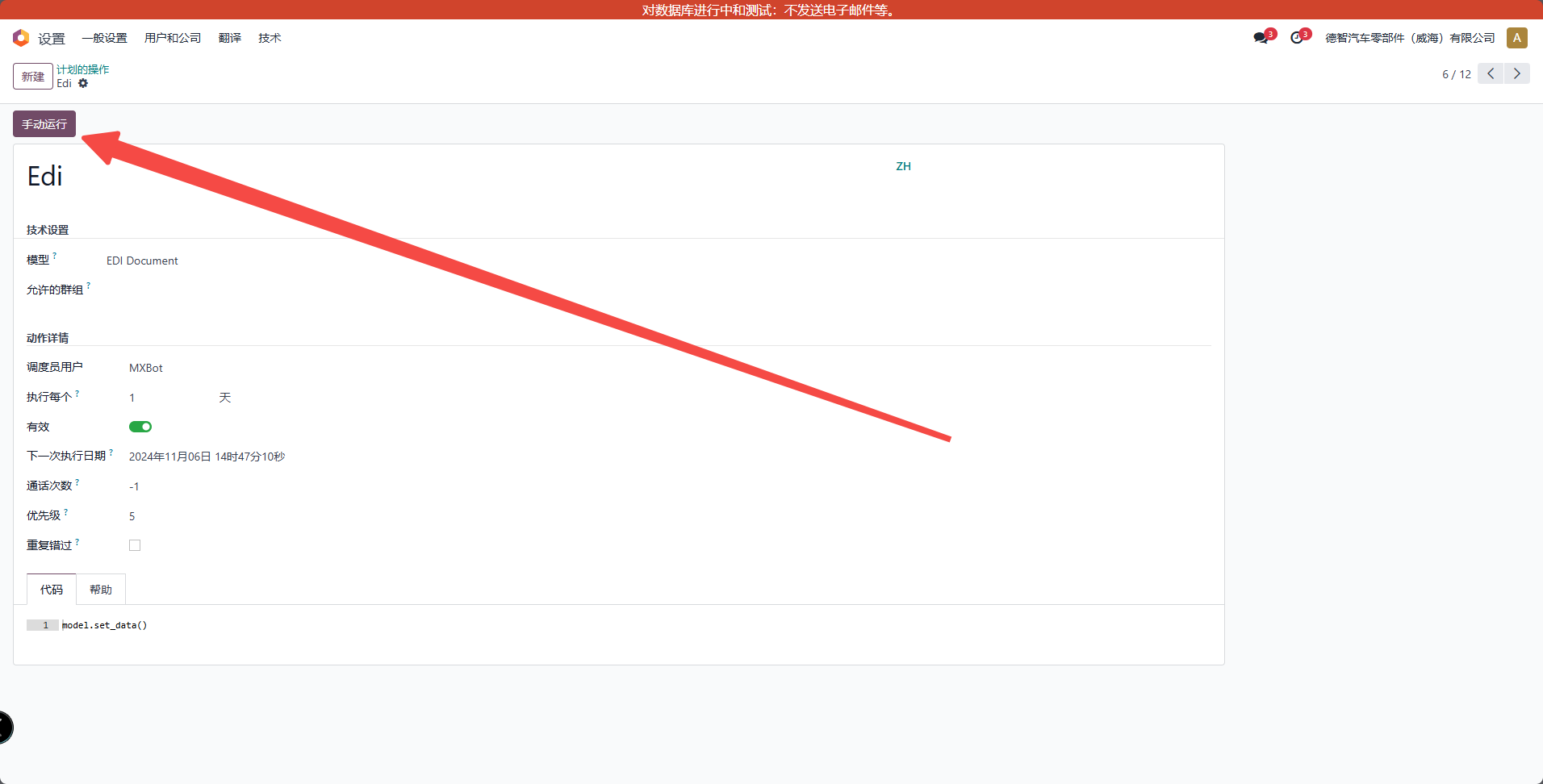
operation
Sales Order Details
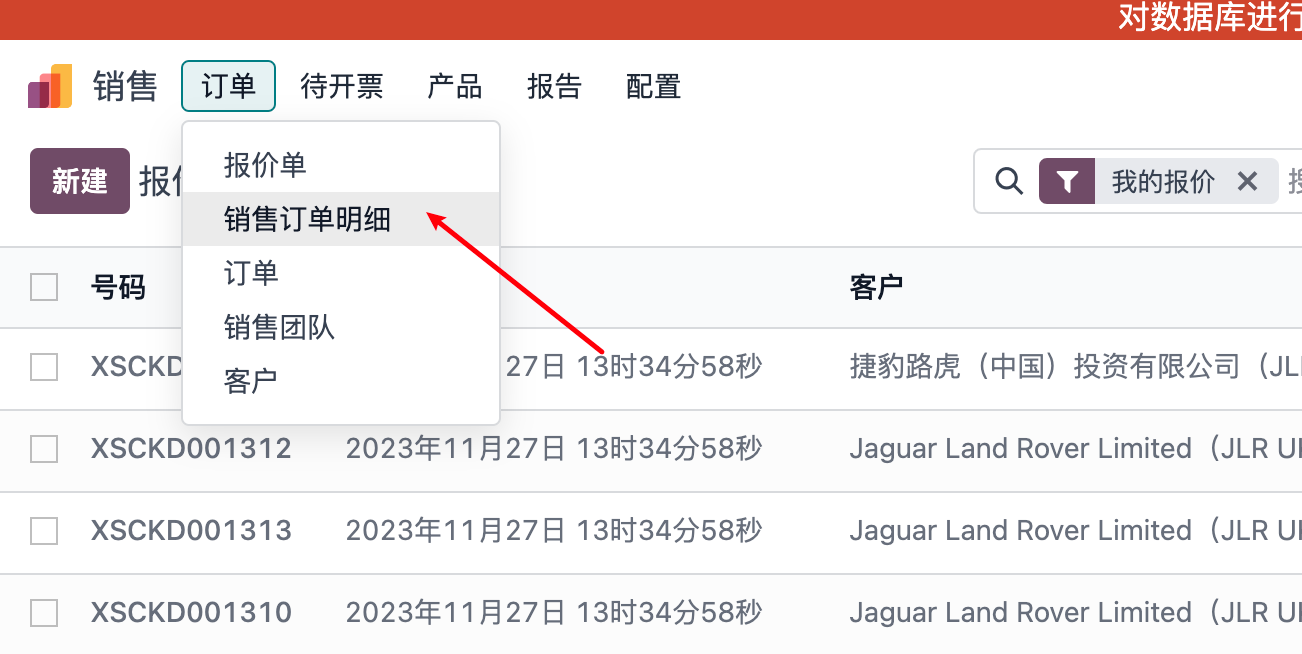
Click on the sales order detail line to be operated on
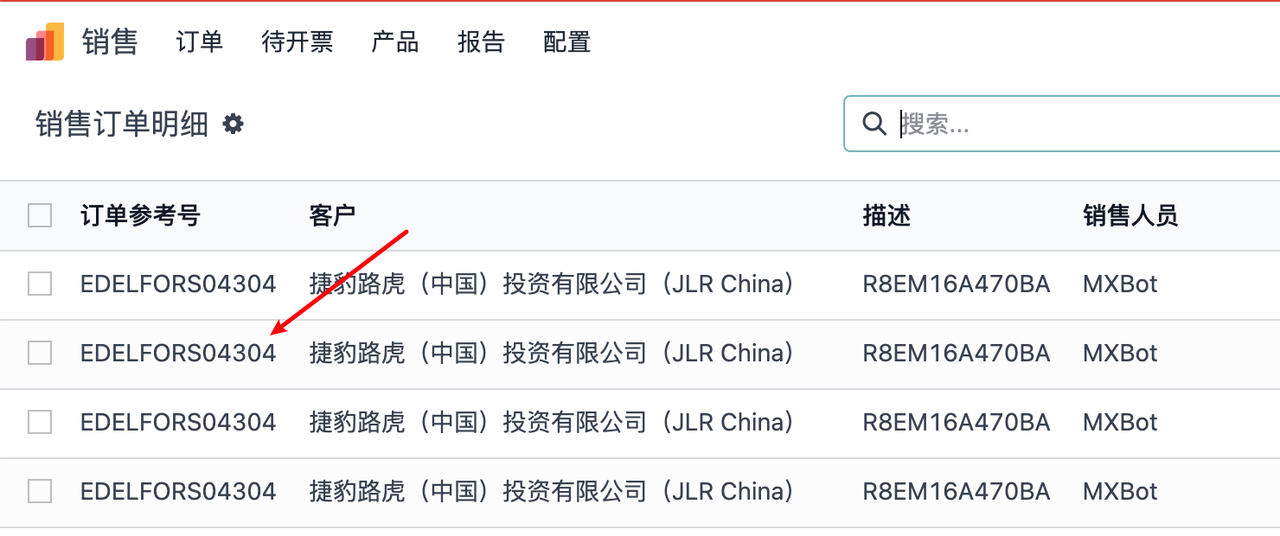
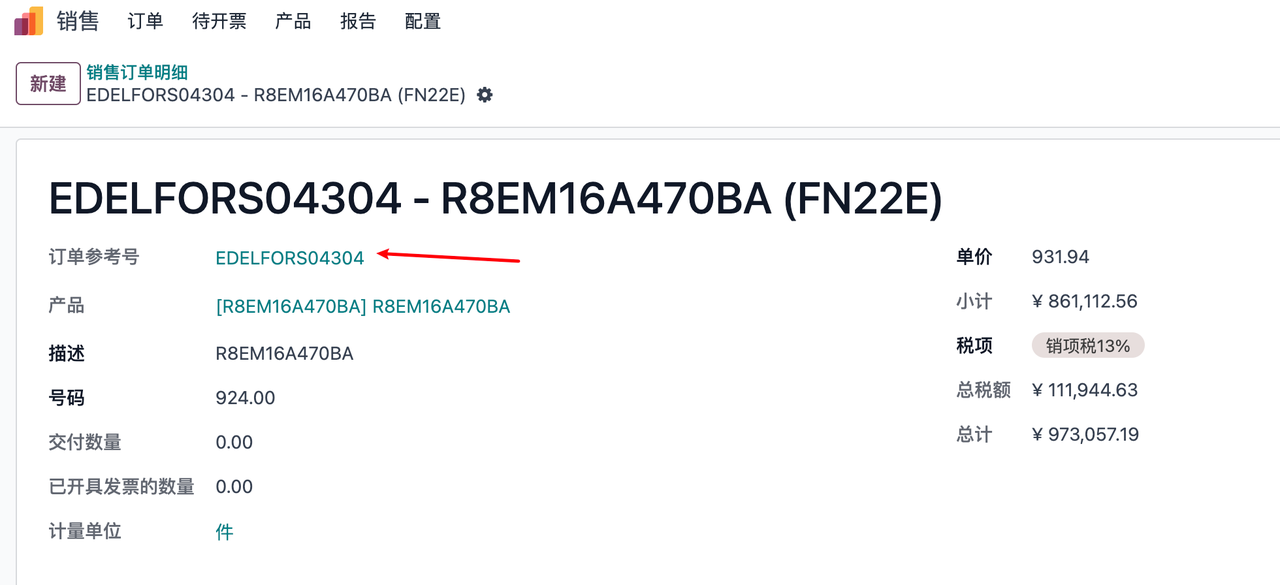
Click on the order reference number to jump to the quotation
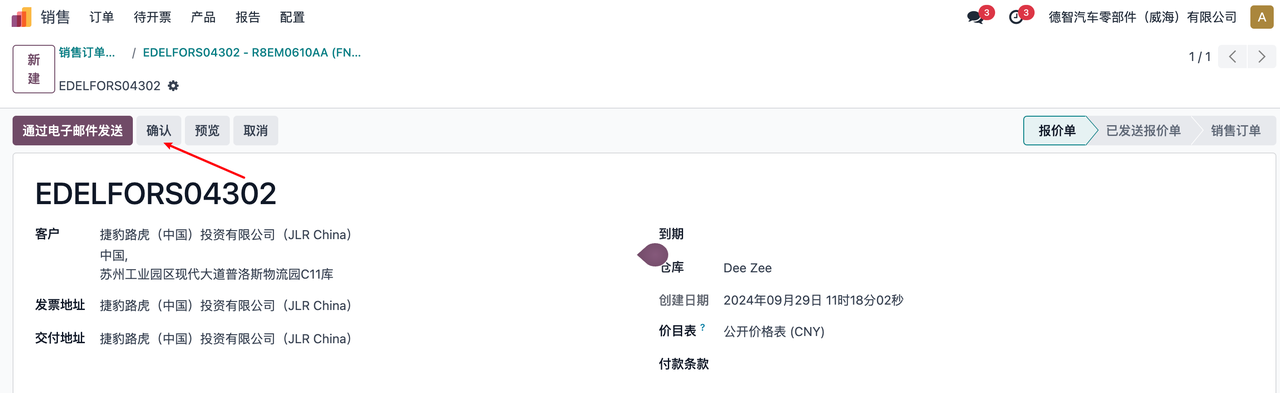
Click confirm to generate sales order
Click on purchase to jump to inquiry form
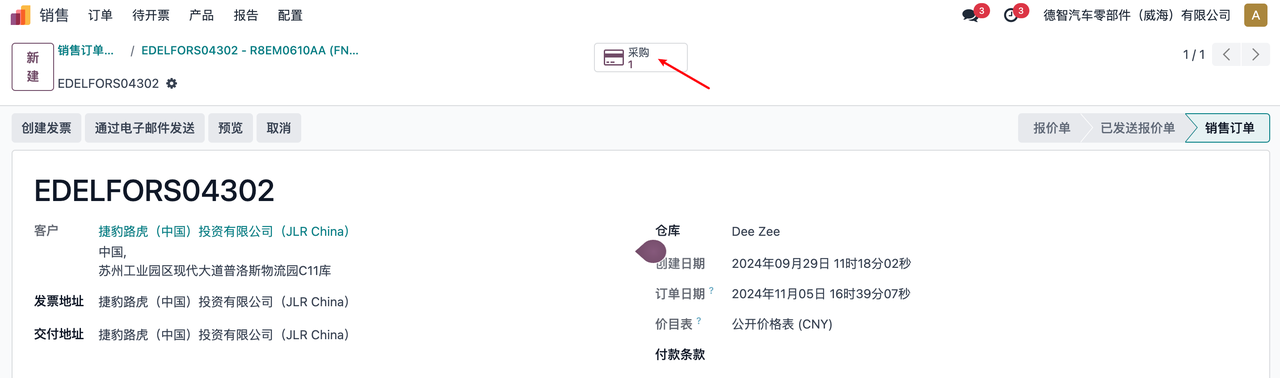
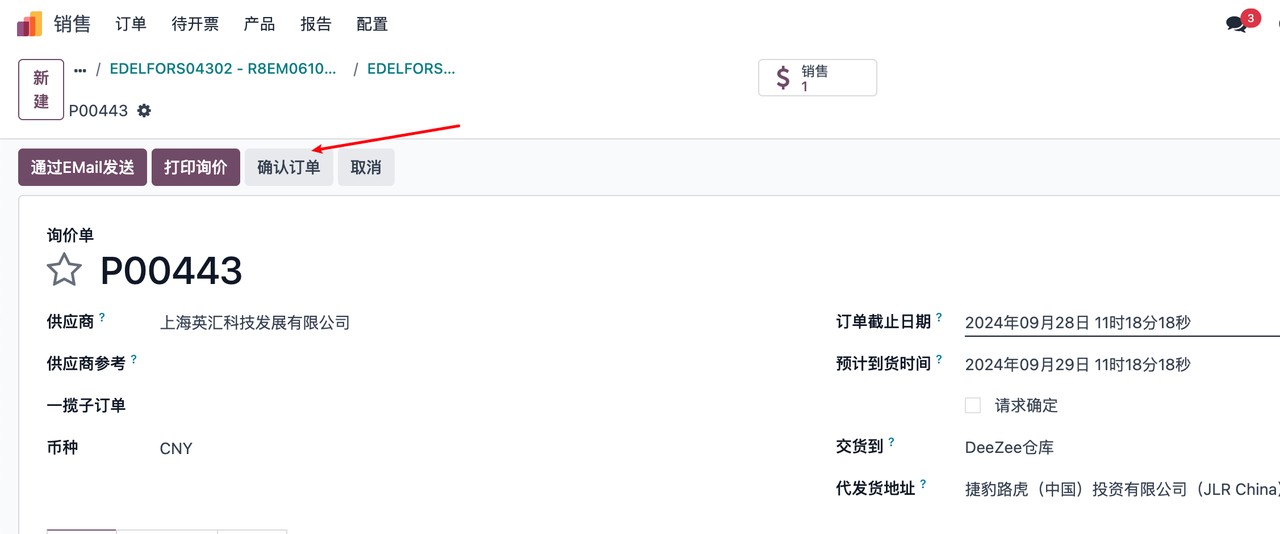
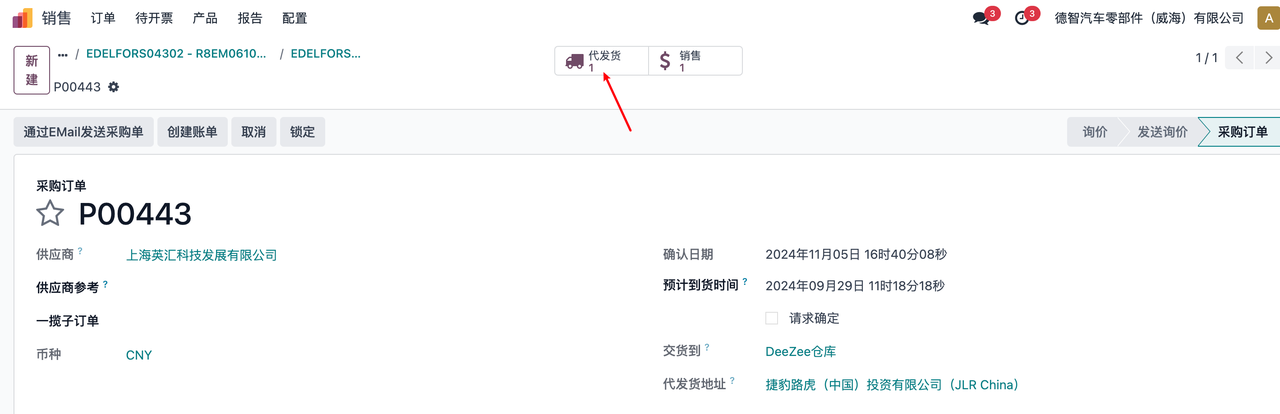
Click to confirm the order to generate a purchase order and ship it on behalf of others
Click on dropshipping to jump to the transfer order
Transfer Order
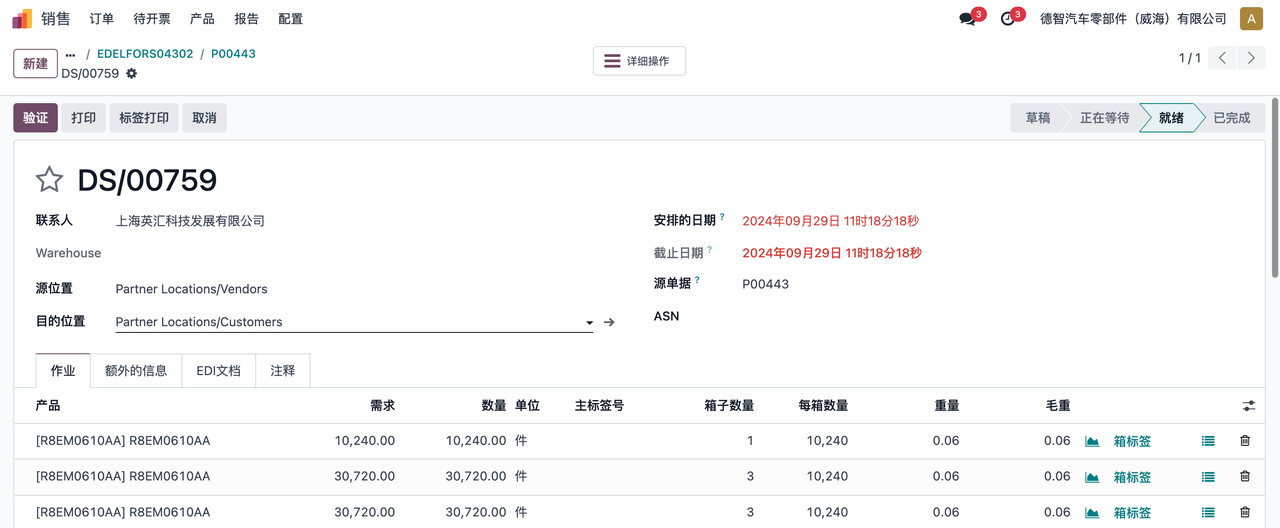
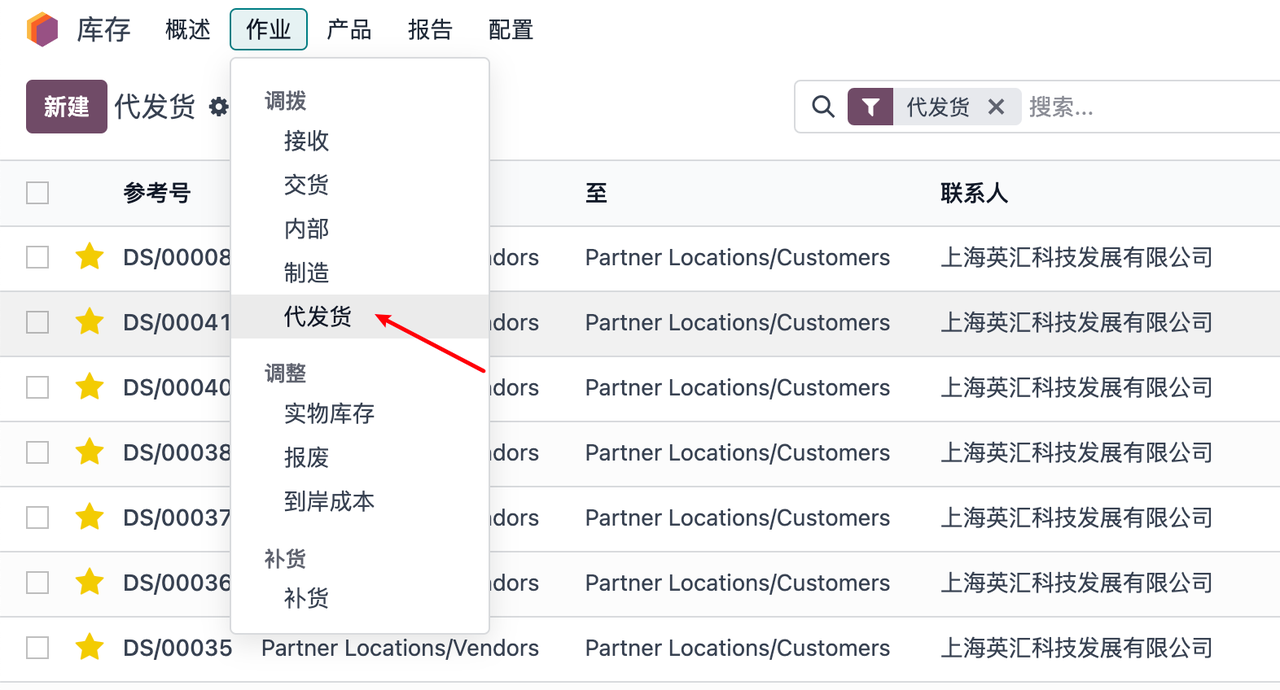
Click on dropshipping
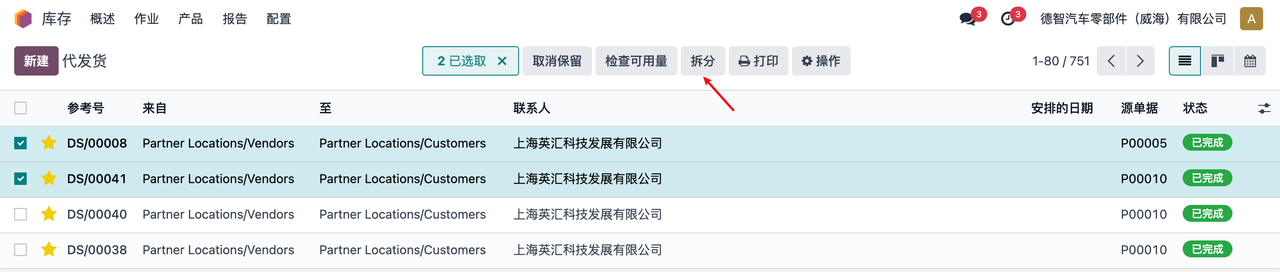
Select the corresponding order according to the shipping logic and click on split
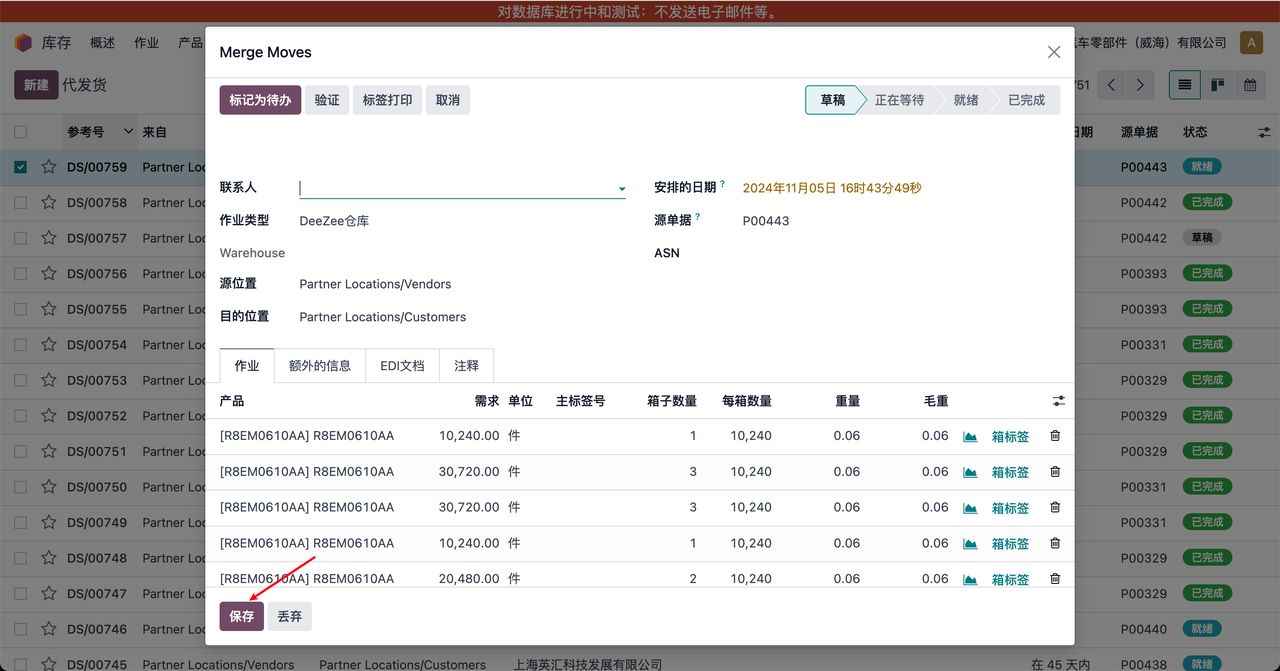
Fill in the corresponding data and click save
Filter for ‘dropshipping’ in the search and select the order that was just split and generated
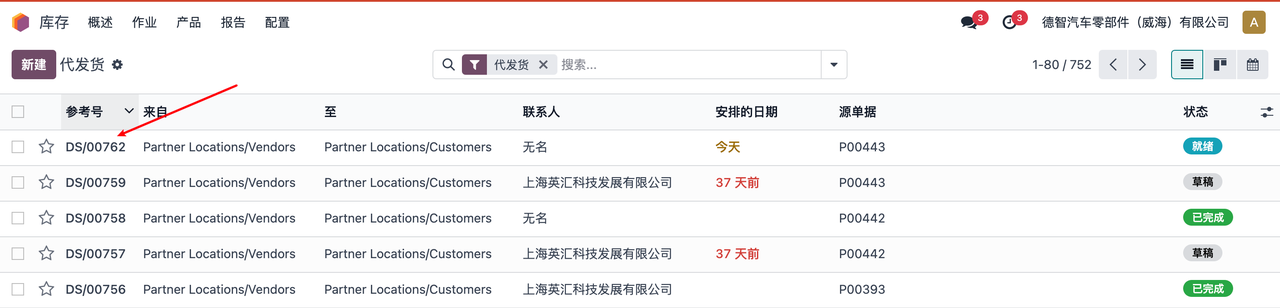
Filter the data to be shipped
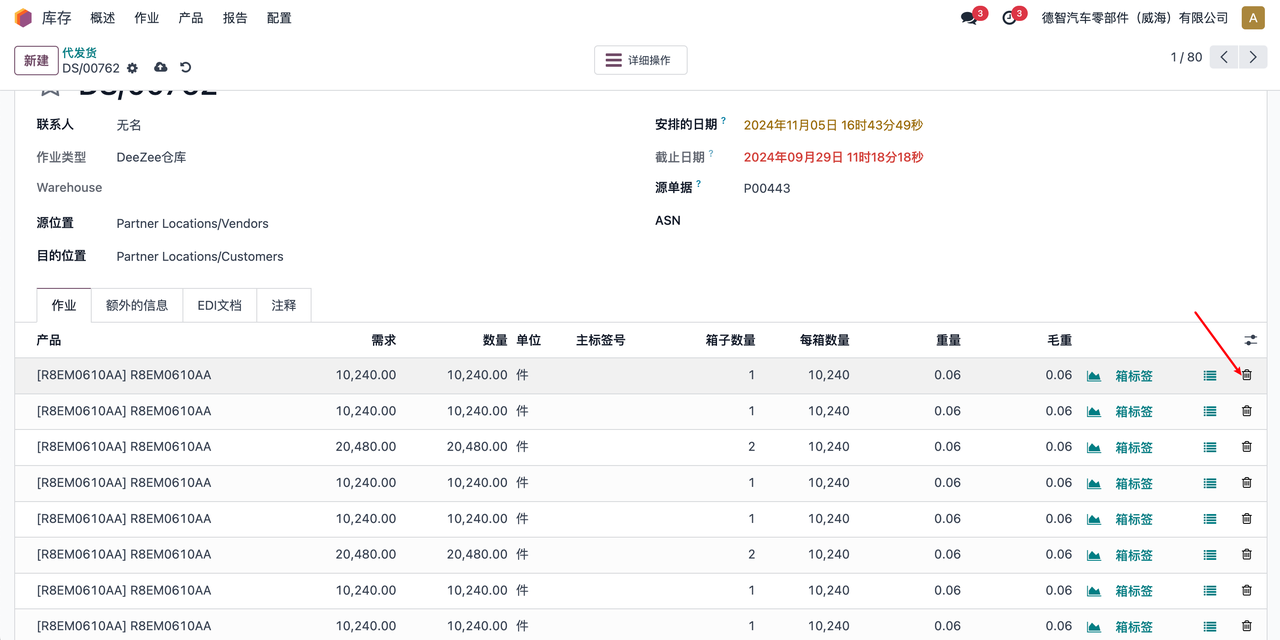
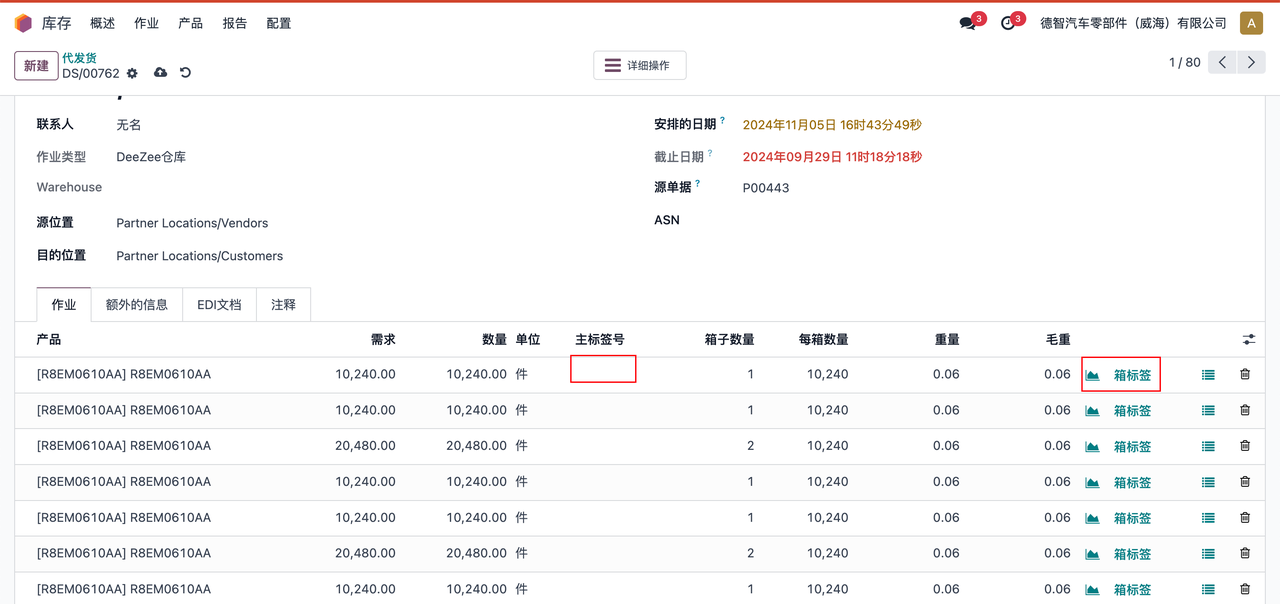
Fill in the main tag number and box tag number
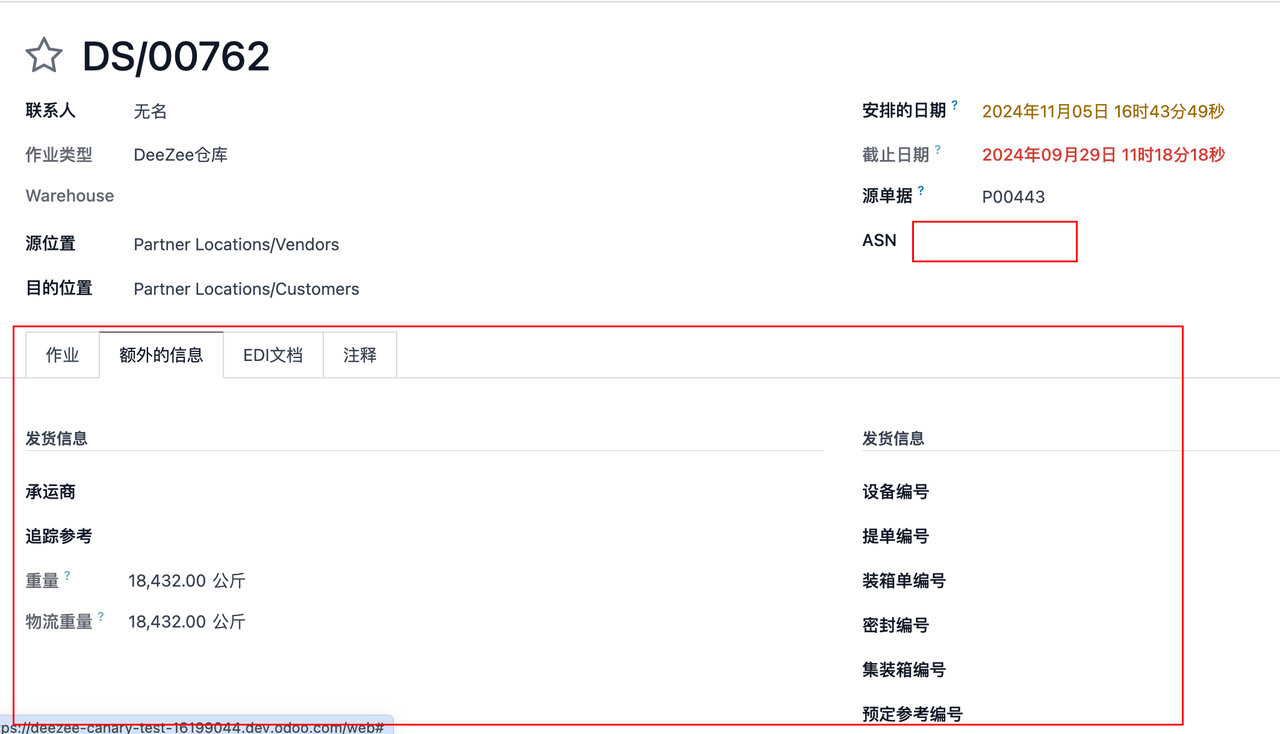
Fill in additional information and ASN
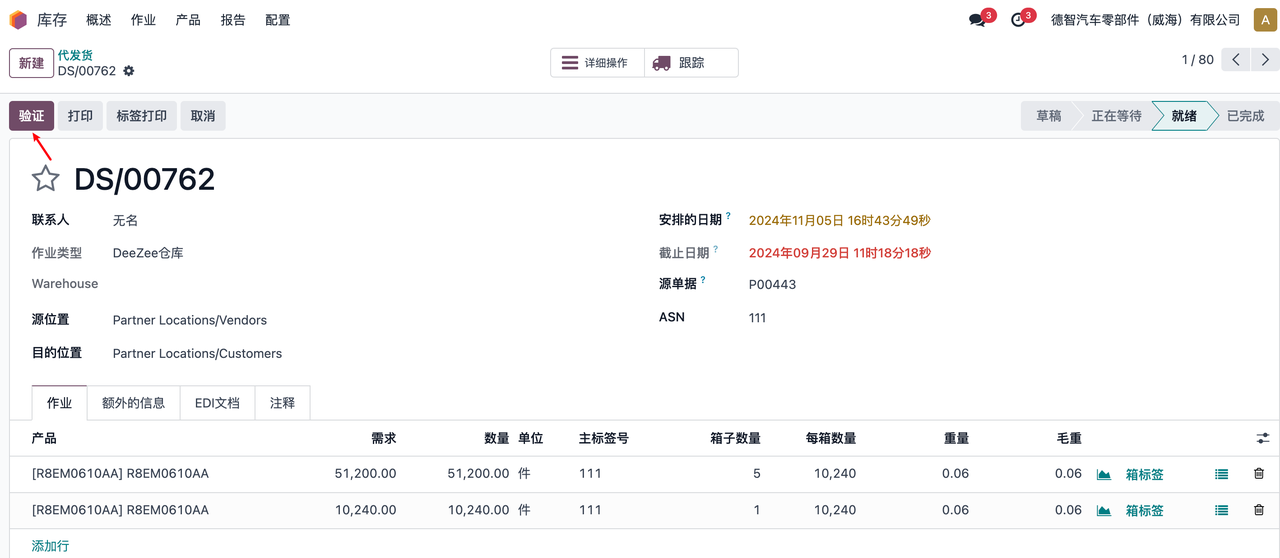
Click on verification to verify the integrity of the data
Click to create EDI document
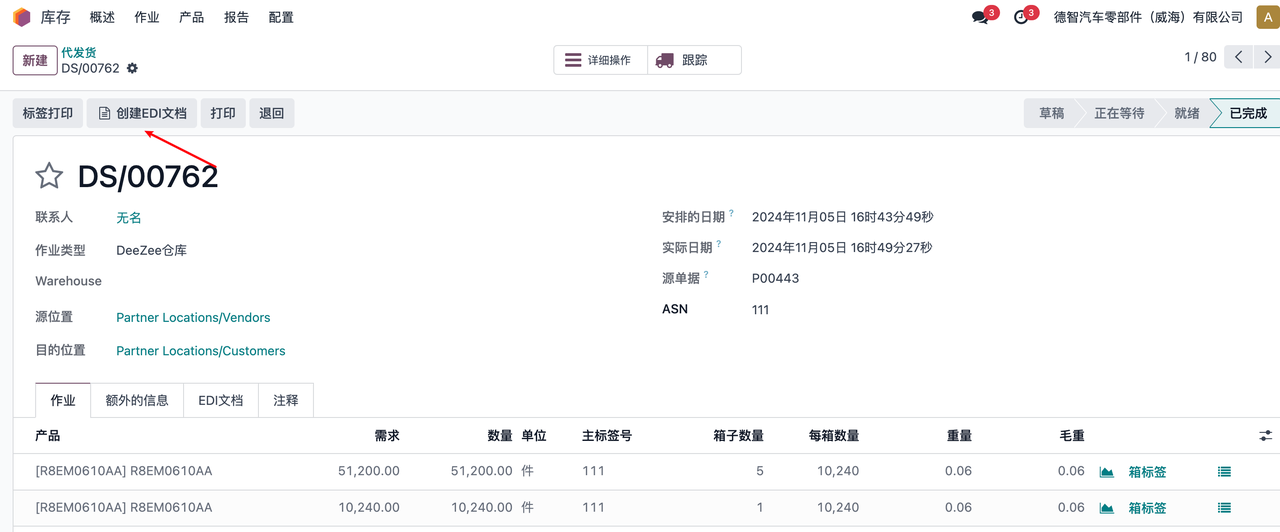
Click to send EDI document