APQP module
brief introduction
APQP stands for Advanced Product Quality Planning, which stands for Advanced Product Quality Planning. It is a structured approach used to define and establish the necessary steps to ensure that the product meets all performance and quality requirements set by the customer. It aims to ensure that products meet customer expectations by carefully planning every stage of product development and production.
Overview of functional modules
The main functions of the Odoo 17 APQP module include:
Project: Create project tasks and set task prerequisites.
Task: Manage tasks initiated and approved by me.
Product: Manage and add all product information.
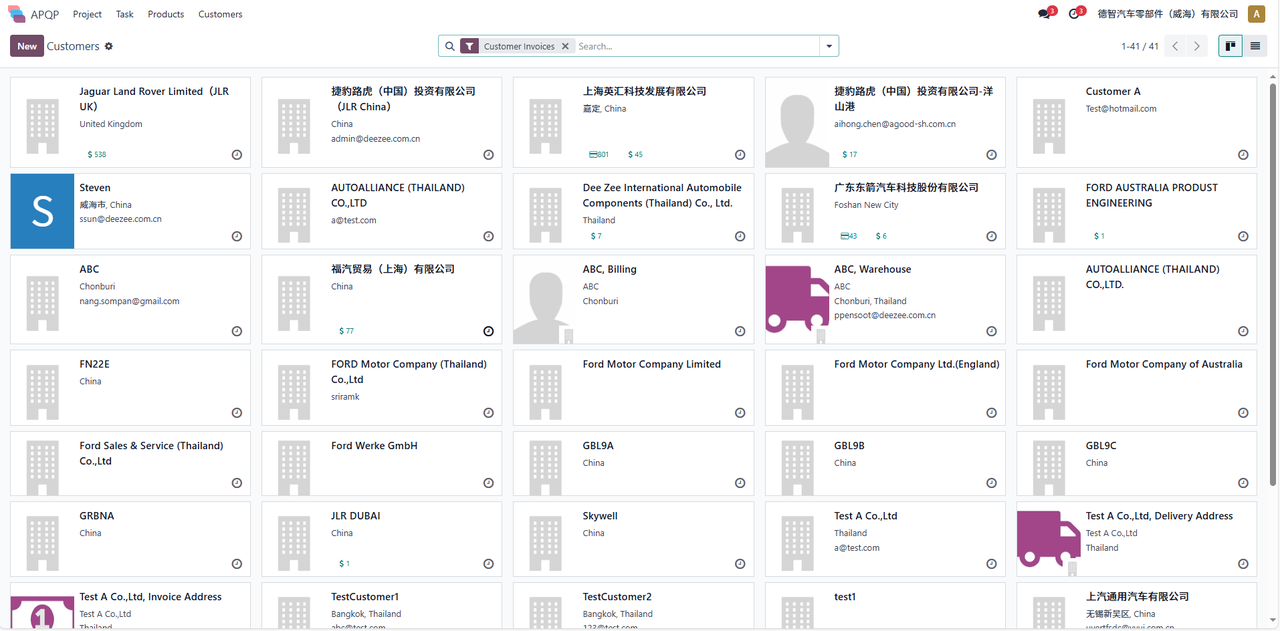
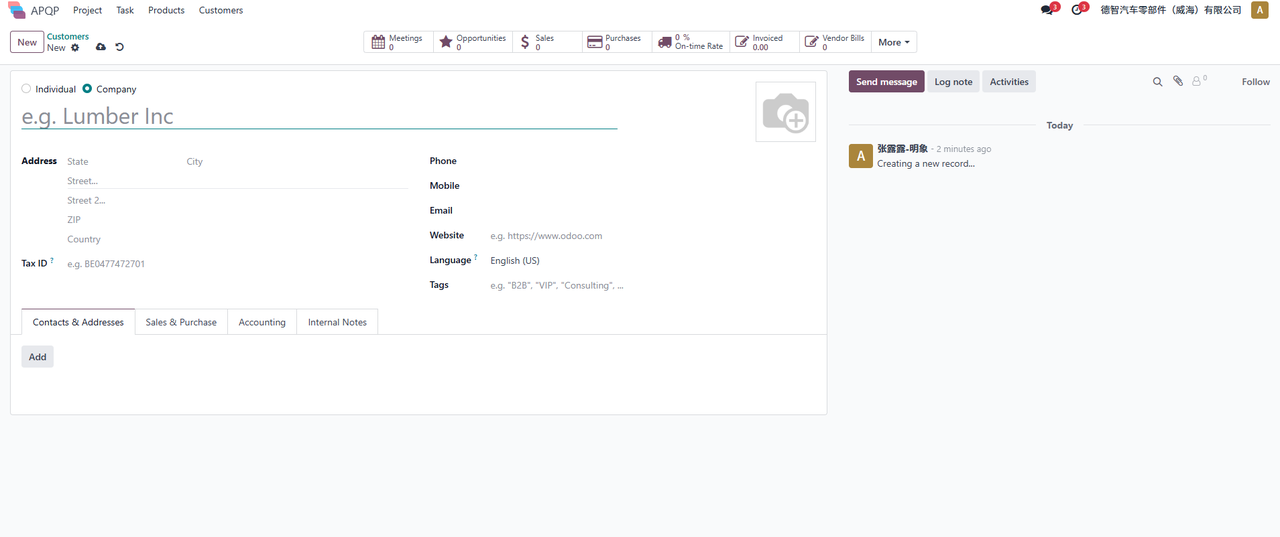
Customer: Manage and add all customer information.
Detailed functional description
project
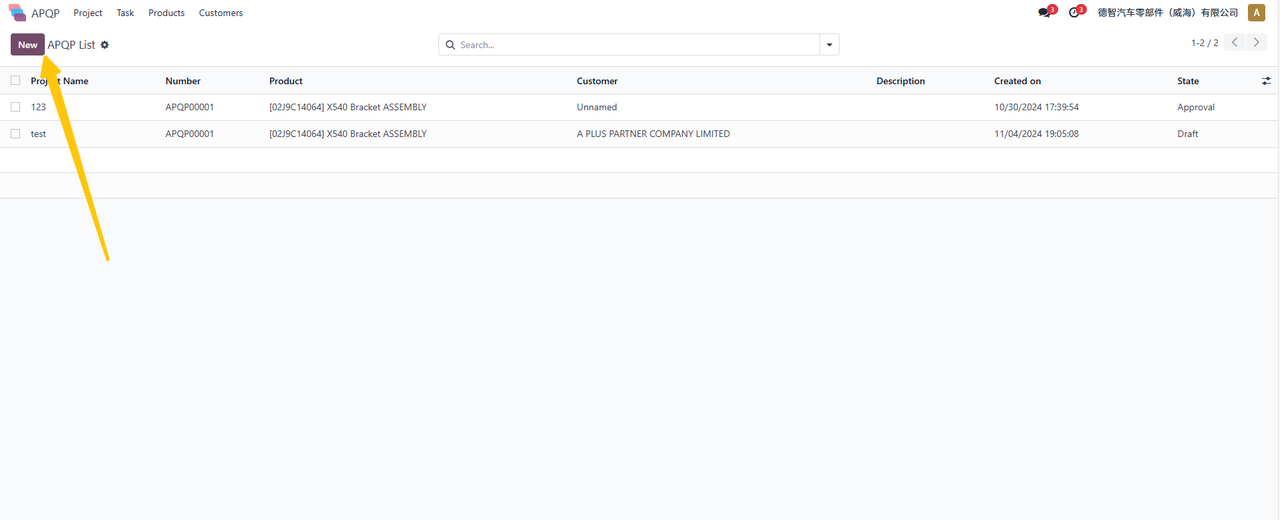
On the APQP module > Project page, you can have an overview of the project and click “New” to add a new project:
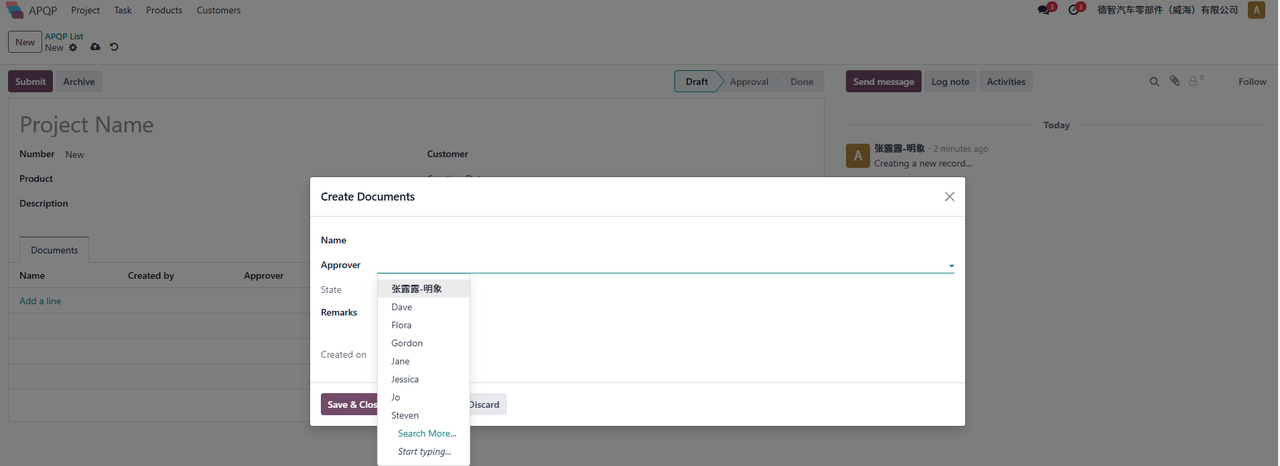
After filling in the information in the following picture, click “Add Row”, select the approver in the pop-up window, confirm that there are no errors, and click “Save&Loss”:
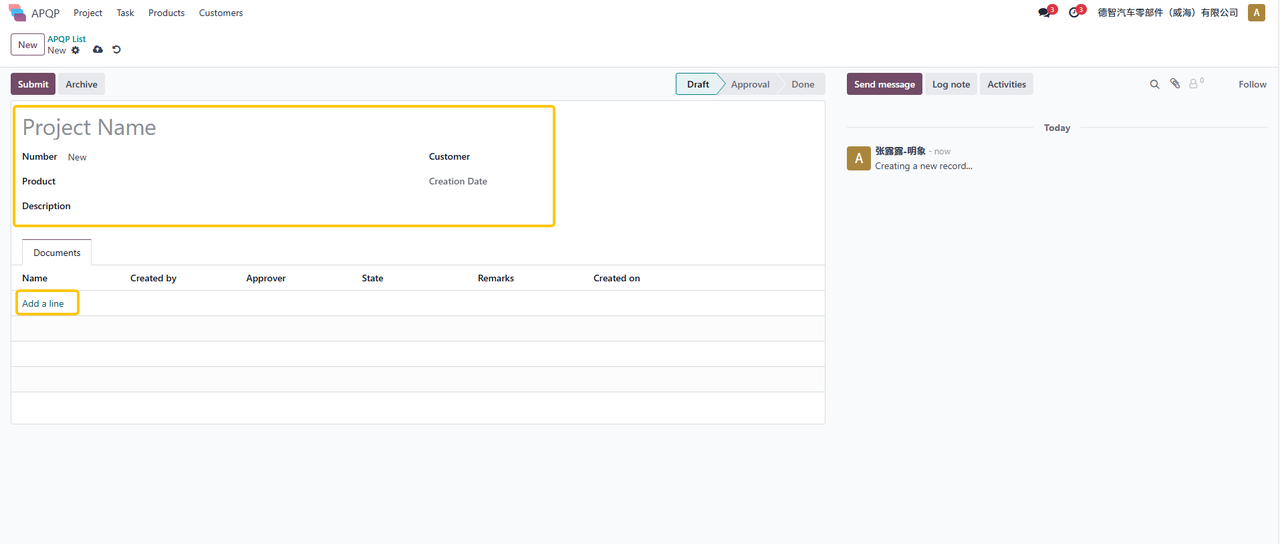
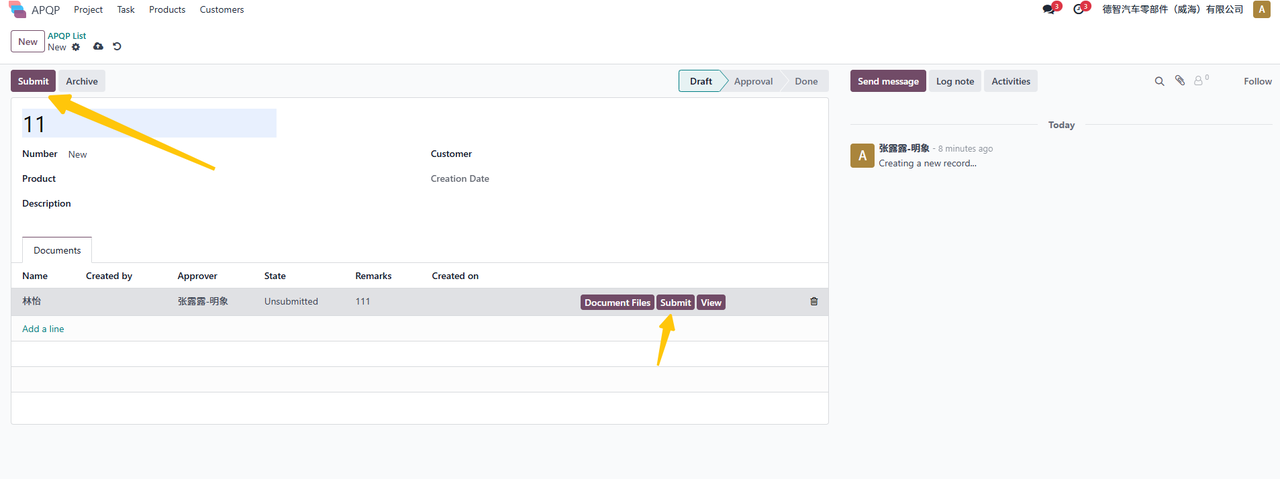
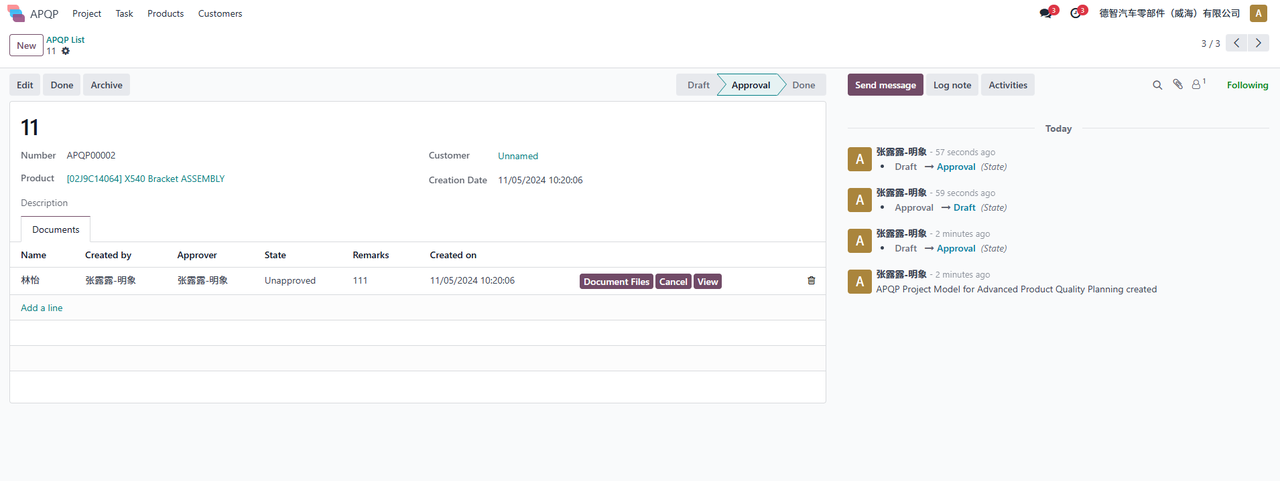
After filling in all the information, click Submit at the Document section and then submit this project:
task
Initiated by me
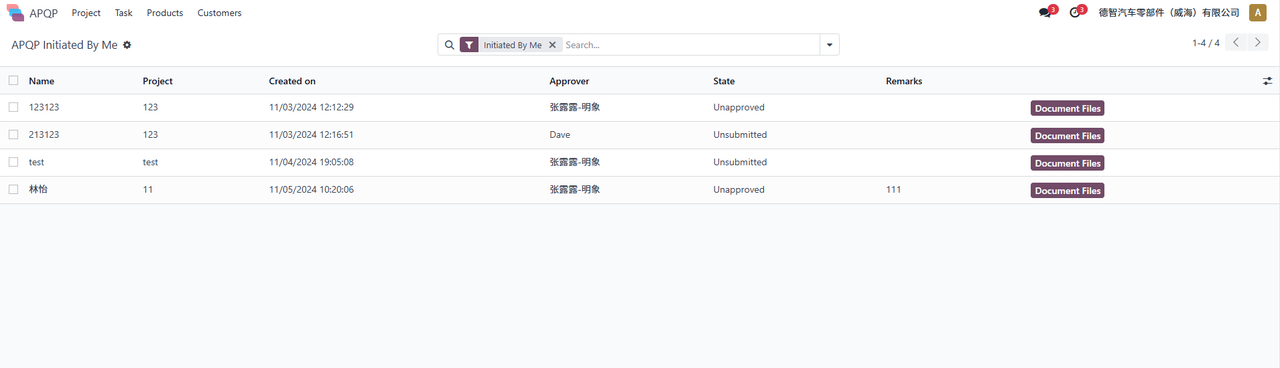
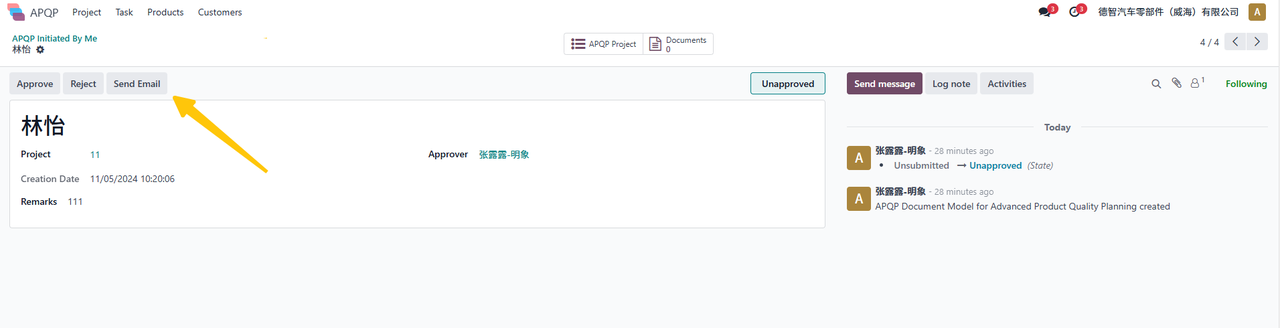
On the APQP module > Tasks > Initiated by Me page, you can see the projects created by me. Click on one to enter:
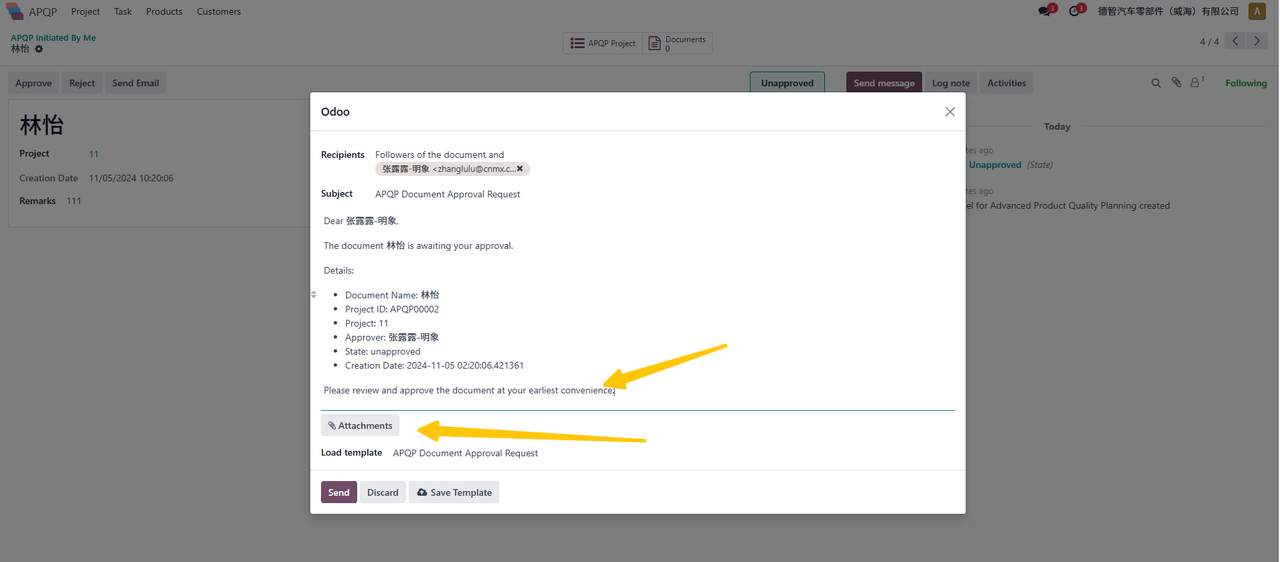
Click ‘Send Email’ here to notify the approver, and add messages and attachments in the pop-up window:
Approved by me
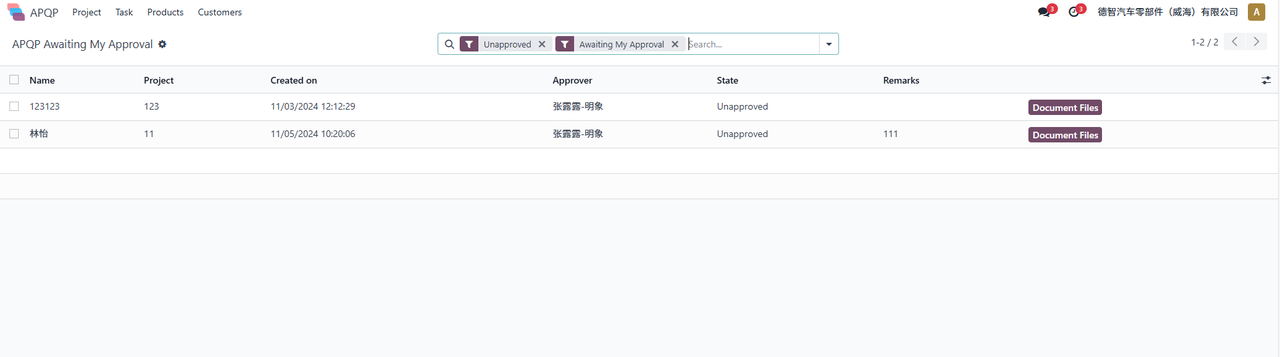
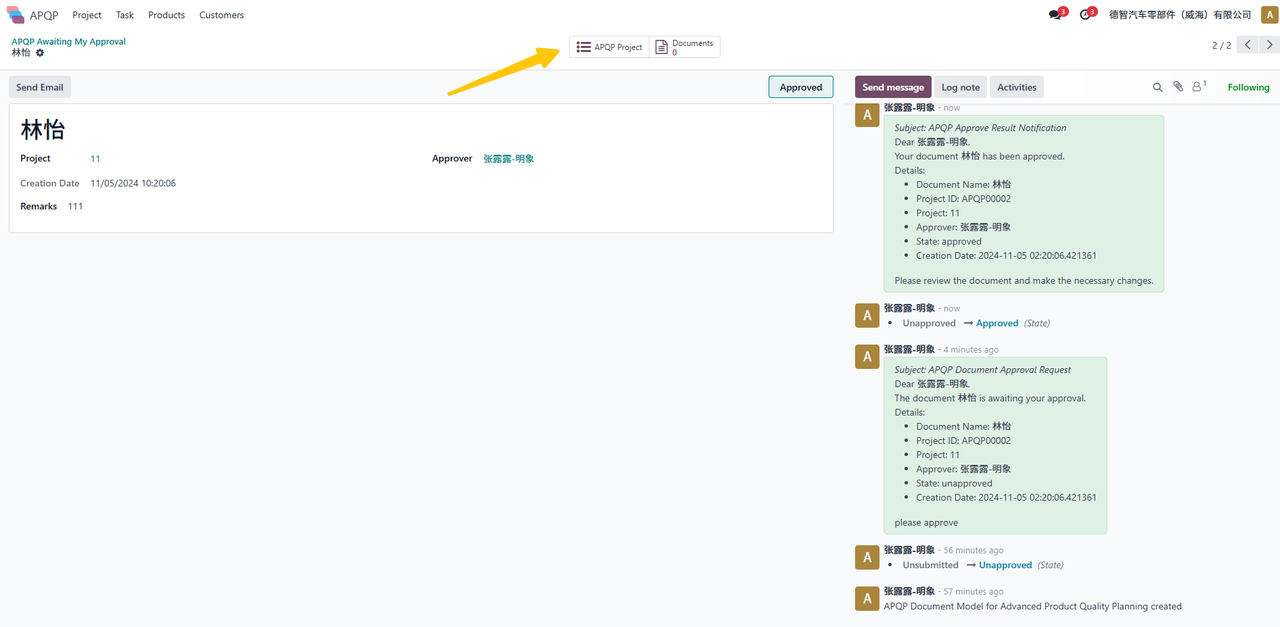
On the APQP module > Tasks > Pending My Approval page, you can see the tasks assigned for approval by the task initiator. Click to enter:
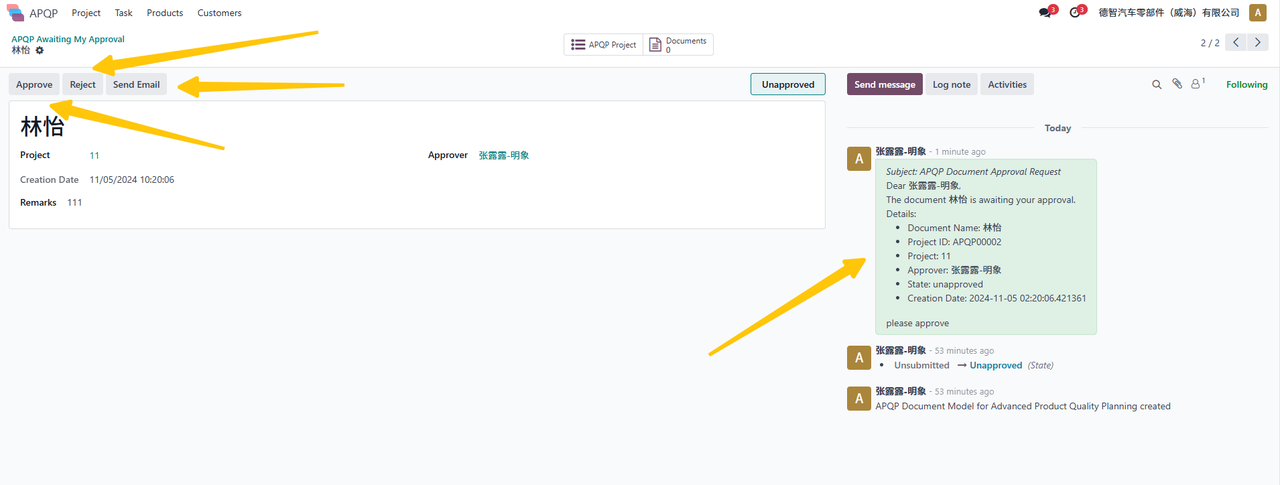
You can receive an email notification from the initiator in the chat box on the right. Click “Approve” or “Reject” at the top to process this task. After processing, click “Send Email” to notify the initiator of the task review progress via email
When the task is approved, find the approved task on the APQP module > Task > My Approval page, click the arrow to enter, and click “Done” to complete the task:
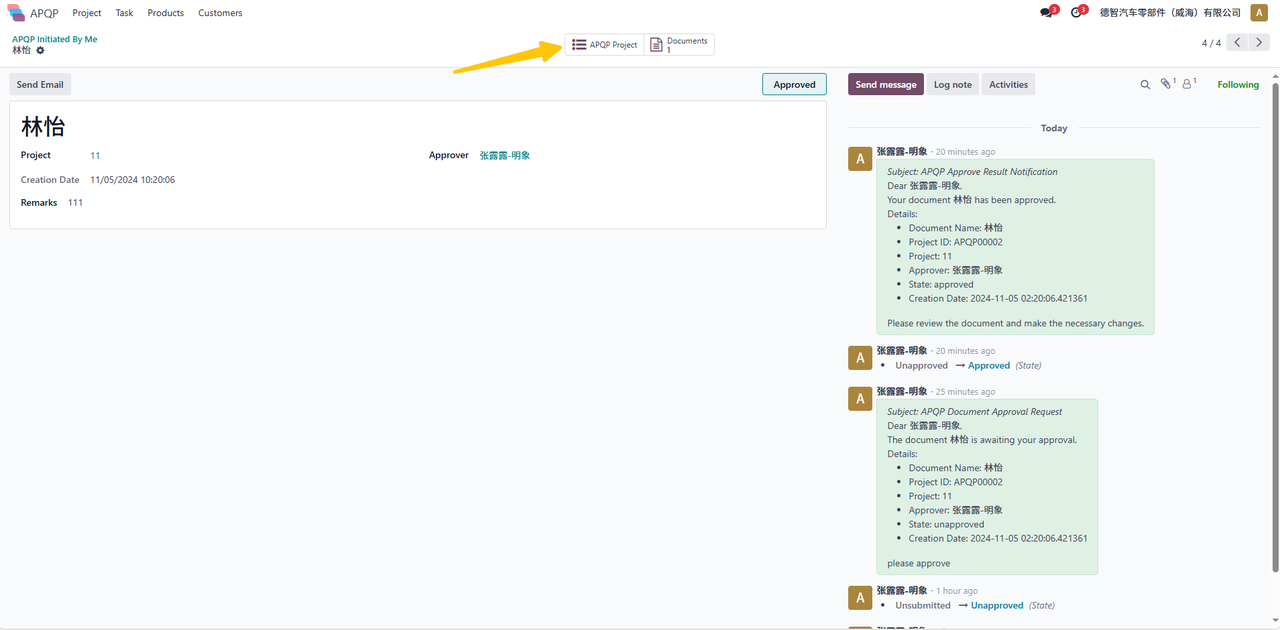
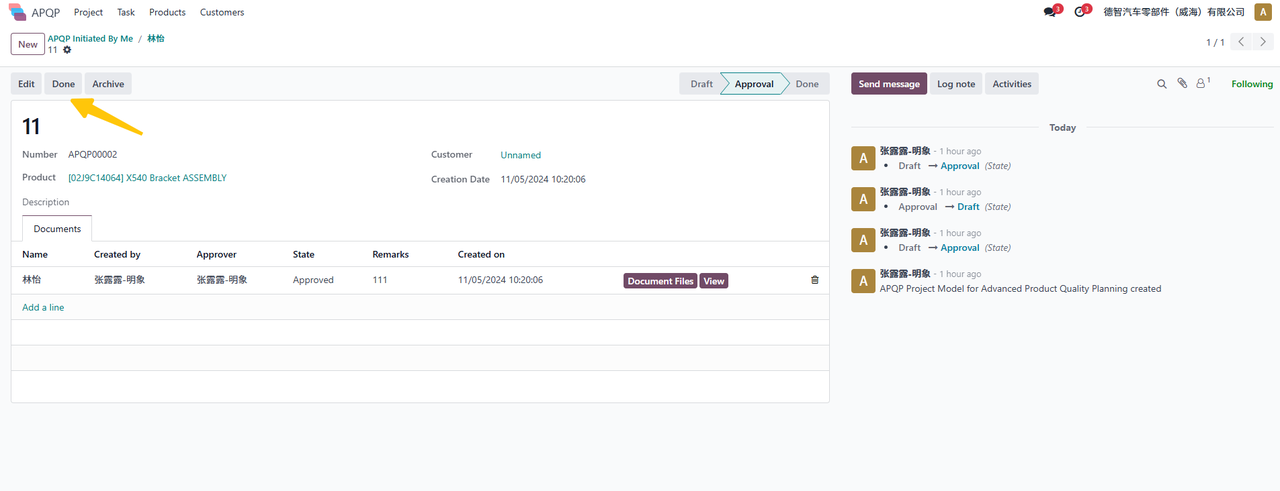
When the task approval does not pass, find the rejected task on the APQP module > Tasks > My Approval page, click here to enter the document or information that needs to be modified, click the arrow to enter APQP Project to modify information, or directly enter Documents to modify the document:
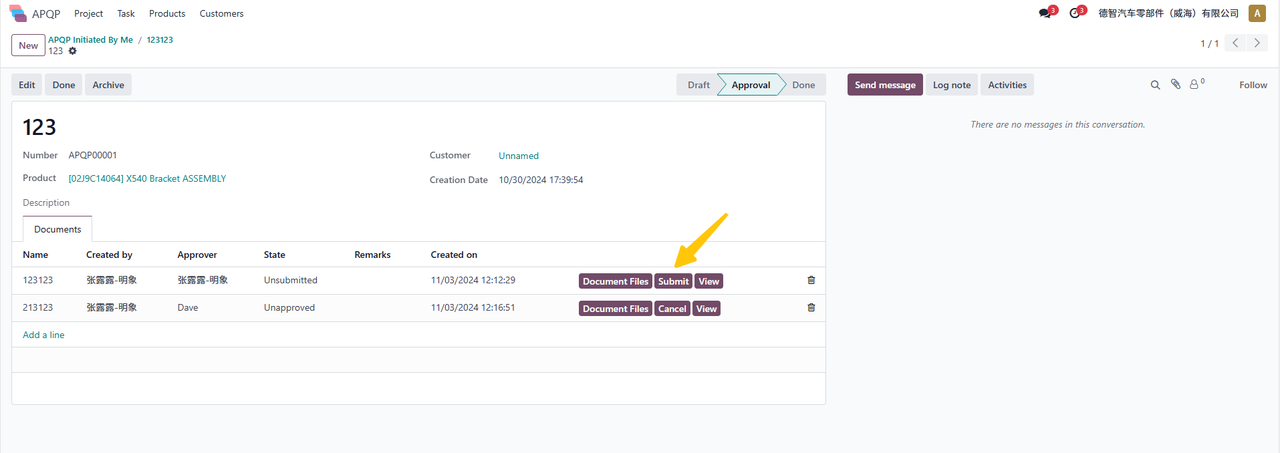
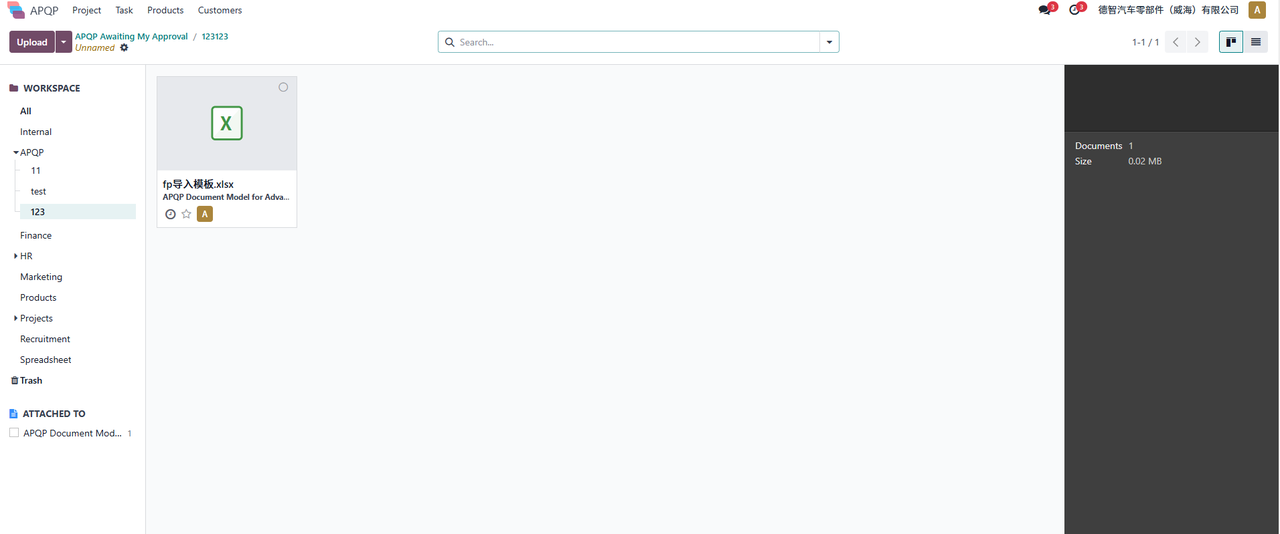
After the modification is completed, click Submit in the document details to return to the previous level. You can resend the email notification, and then on the APQP module > Task > Pending My Approval page, the approver can initiate approval for the task again.
product
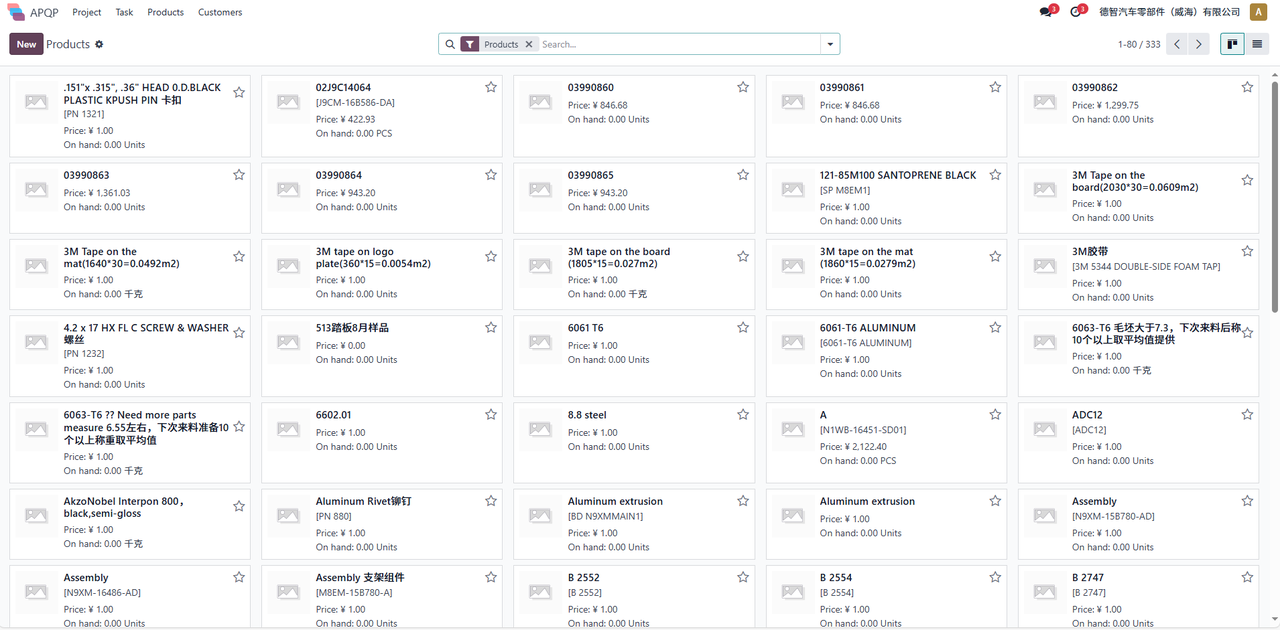
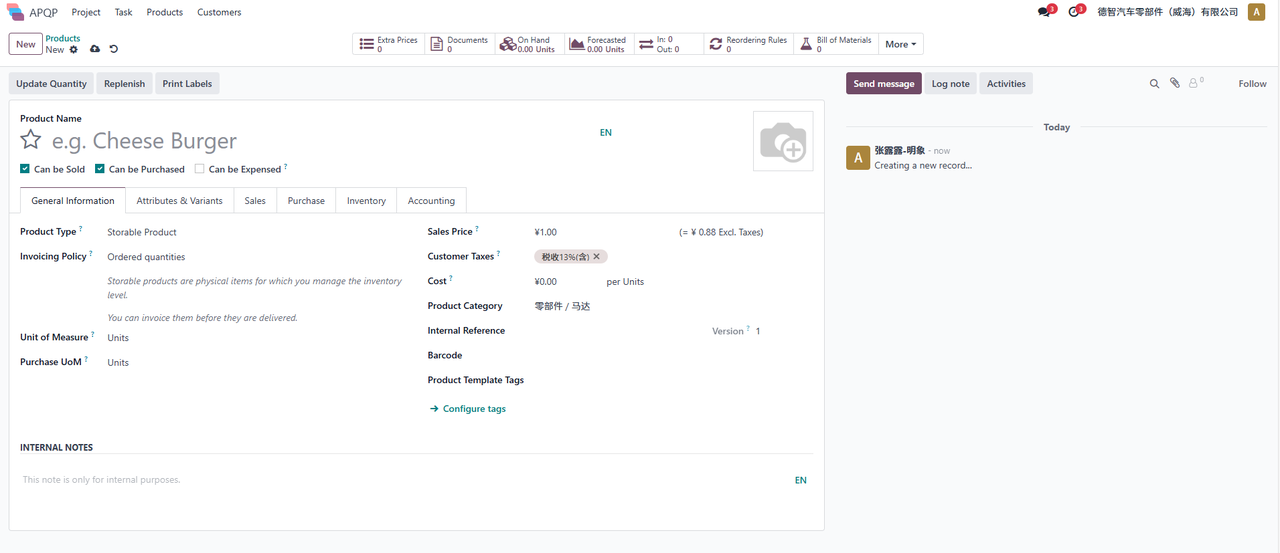
On the APQP module > Product > New page, fill in the product information to be added, save it, and display it on the APQP module > Product page:
customer
On the APQP module > Customer > New page, fill in the product information to be added, save it, and display it on the APQP module > Customer page: