
技能进化
In Odoo’s Appraisals app, it is possible to view employee’s skills as they progress over time in the Skills Evolution report, also known as the Appraisal Skills Report.
Managers can use this to see who is achieving their various skill goals set on their appraisals, who is meeting their skill deadlines, who has the highest performance in terms of skill development, and more.
The Skills Evolution report also provides the ability to search for employees with specific skills at certain levels, which can be helpful for scenarios where specific skills are required.
Skills evolution report
To access this Skills Evolution report, navigate to .
Doing so reveals the Appraisal Skills Report page, which displays a report of all skills, grouped by employee, in alphabetical order, by default.
注解
Skill levels are only updated after an appraisal is marked as done. Any skill level changes from ongoing appraisals that have not been finalized are not included in this report.
All the Employee lines are expanded, with all the various skill types nested below. Each individual skill type is collapsed, by default. To view the individual skills contained within a skill type, click anywhere on the skill type line to expand the data.
每个技能都列出了以下信息:
员工:员工姓名。
技能类型:技能所属类别。
技能:具体的个人技能。
以前的技能水平:员工以前达到的技能水平。
以前的技能进度:该技能以前达到的能力百分比(基于 技能水平)。
当前技能水平:员工当前已达到的技能水平。
当前技能进度:技能当前达到的能力百分比。
说明:在技能上输入的注释,用于解释进度。
The color of the skill text indicates any changes from the previous appraisal. Skill levels that have increased since the last appraisal appear in green, as an Improvement. Skill levels that have not changed appear in black, as No Change. Skills that have regressed appear in red, as Regression.
This report can be modified to find specific information by adjusting the filters and groupings set in the search bar at the top.
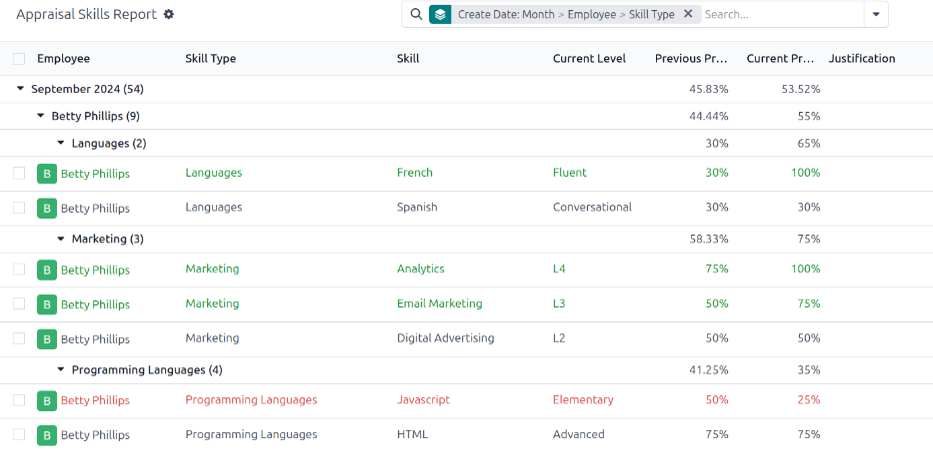
Use case: Identify employees with specific skills
由于 考评技能报告 按员工组织所有技能,因此很难找到在特定级别拥有特定技能的员工。要找到这些员工,必须使用自定义筛选器。
In this example, the report is modified to show employees with an expert level of Javascript knowledge. To view only those employees, first remove all active filters in the search bar.
Next, click the (down arrow) icon in the search bar, then click Add Custom Filter beneath the Filters column to load an Add Custom Filter pop-up window.
Using the drop-down menu in the first field, select Skill. Then, keep the second field as-is, and select Javascript from the third drop-down menu in the third field.
Next, click New Rule, and another line appears. In this second line, select Current Skill Level for the first drop-down field, leave the second field as-is, then select Expert for the third drop-down field.
After the New Rule button is clicked, the word “any” in the sentence Match any of the following rules:, changes from plain text into a drop-down menu. Click the (down arrow) icon after the word any, and select all.
Finally, click the Add button.
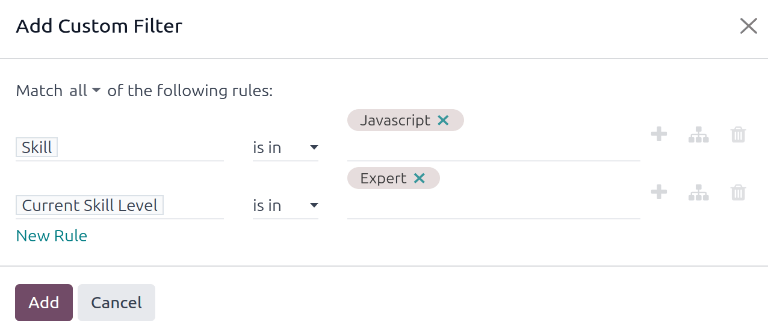
Now, only employees that have an Expert level for the skill Javascript appear. In this example, only Marc Demo meets these criteria.
